Message boards
Announcements and discussions that stay findable: posting, drafts, scheduling and replies.
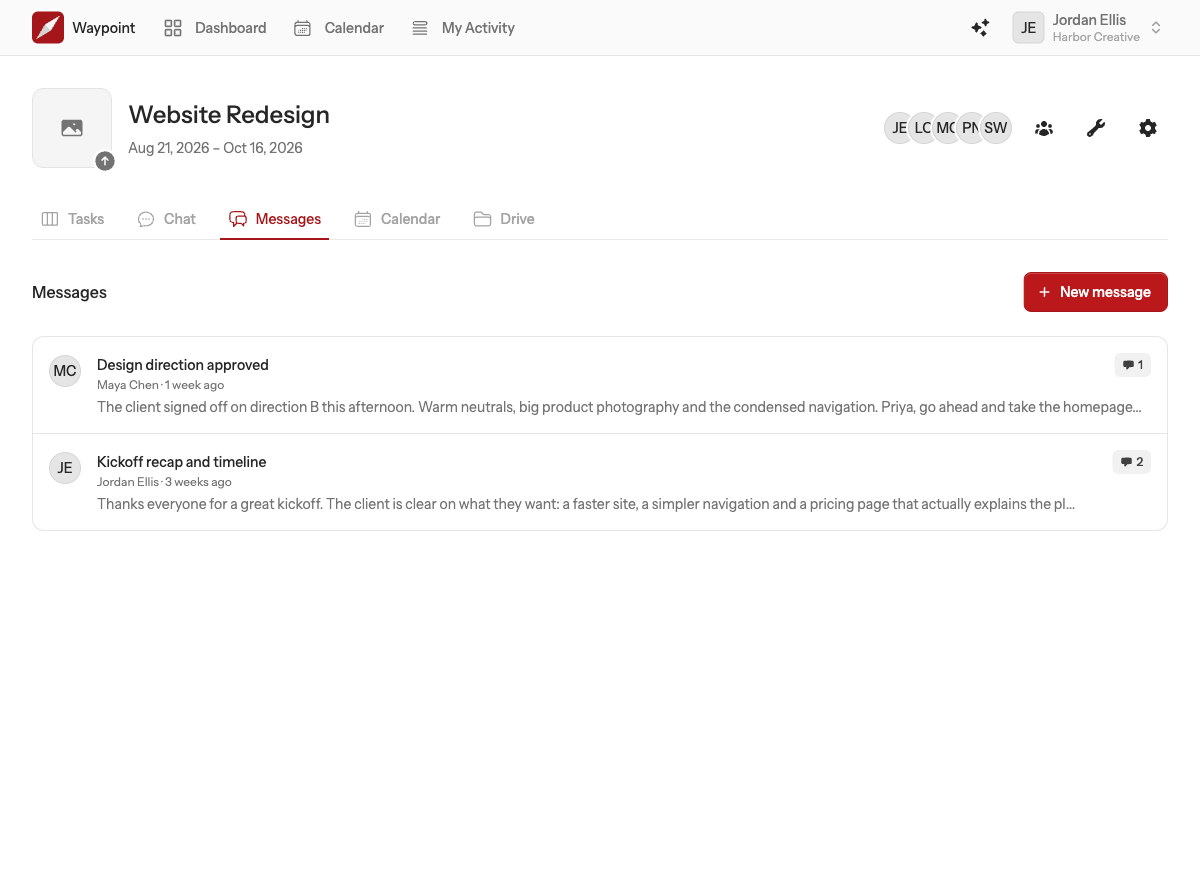
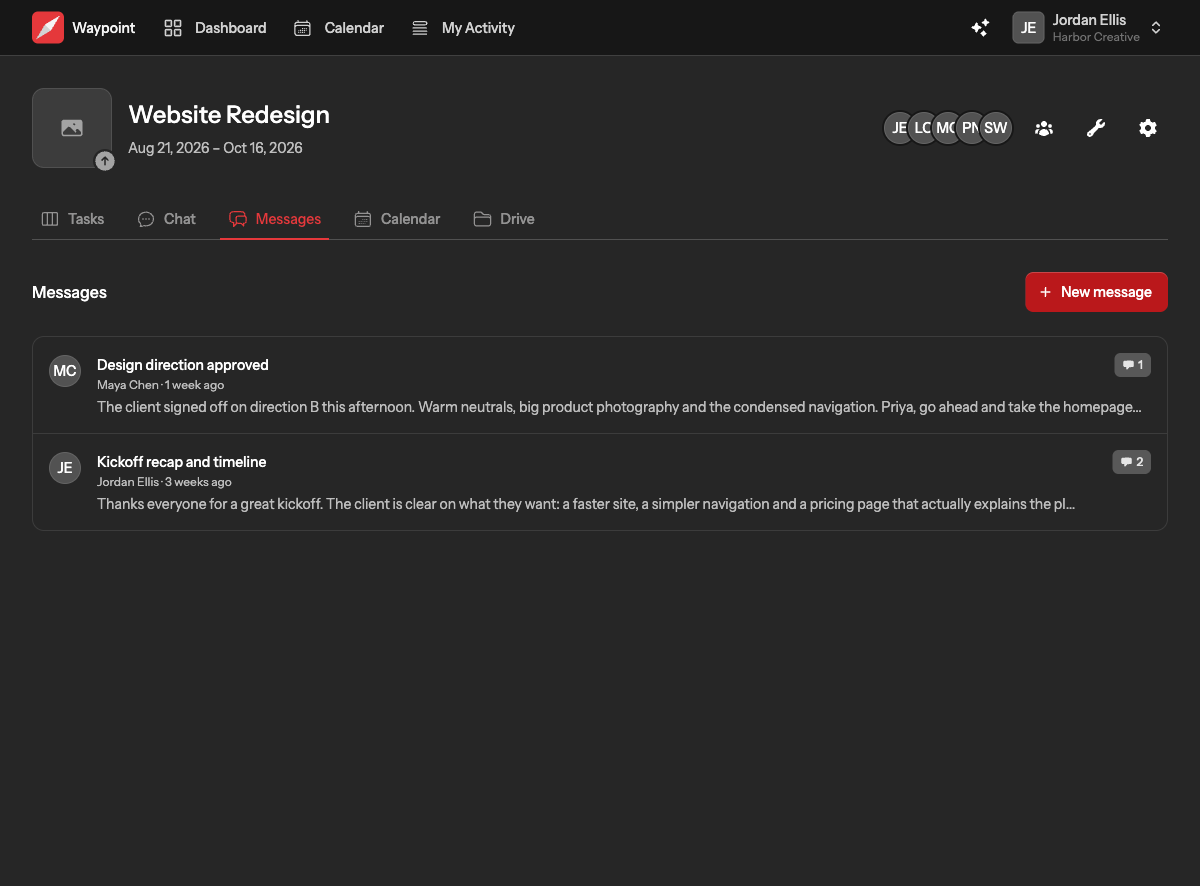
A message board is for the things the project will want to find again: announcements, decisions, weekly updates, longer discussions. Each message has a title, a formatted body and a thread of replies that stays attached to it.
Posting a message
- Open the project's Messages tab and choose New message.
- Give it a title and write the body. The editor supports headings, bold and italic text, lists, links and quotes, and you can @mention anyone on the project.
- Choose when it goes out:
- Post now publishes immediately.
- Schedule publishes at a date and time you pick. Until then, only you can see it.
- Save as draft keeps it private until you come back to it.
- Choose Post.
When you post a message now, everyone who can see the project is notified. Anyone you mentioned is notified separately, even if the message is still a draft.
Drafts and scheduled messages
Your drafts and scheduled posts sit at the top of the board, marked with their status, and only you can see them. Open one to keep editing it, change its schedule, or choose Post now to publish it straight away. A scheduled message appears on the board by itself at the time you set.
Replying
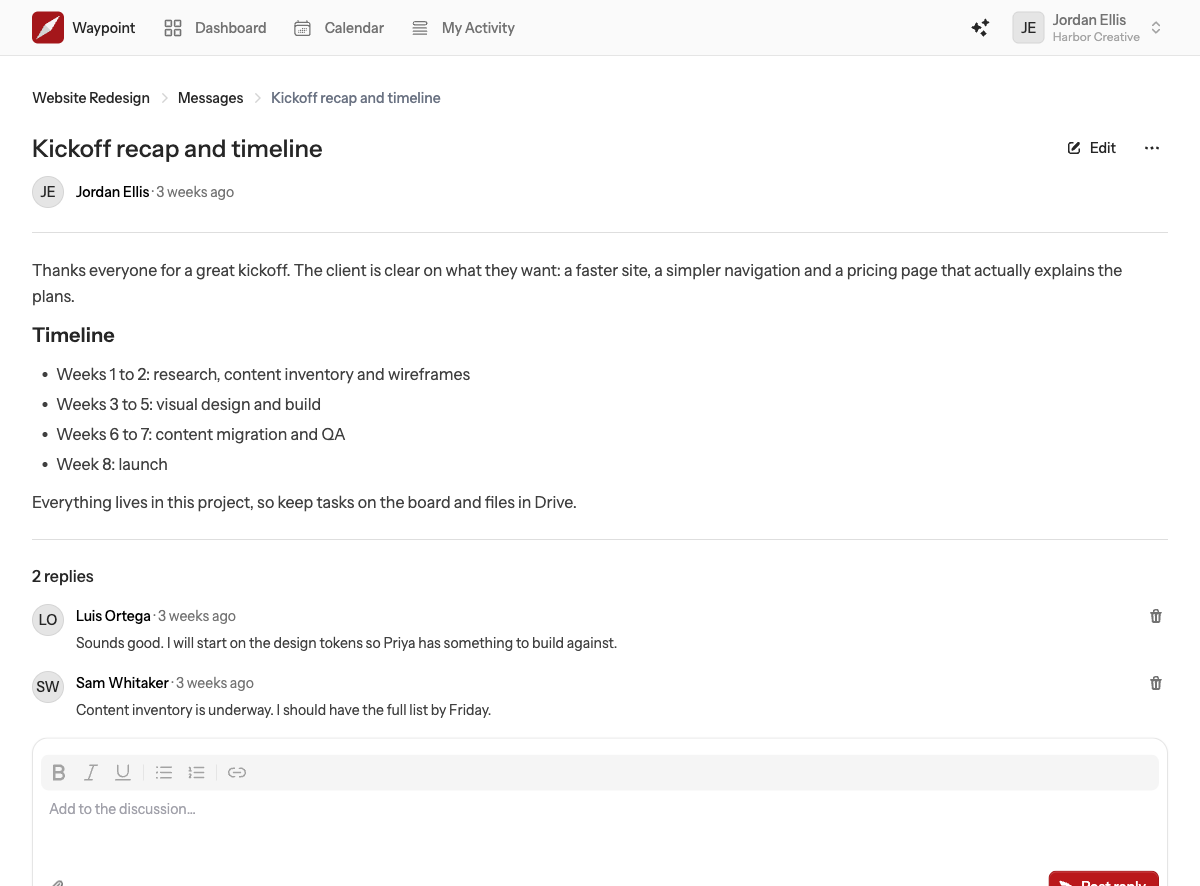
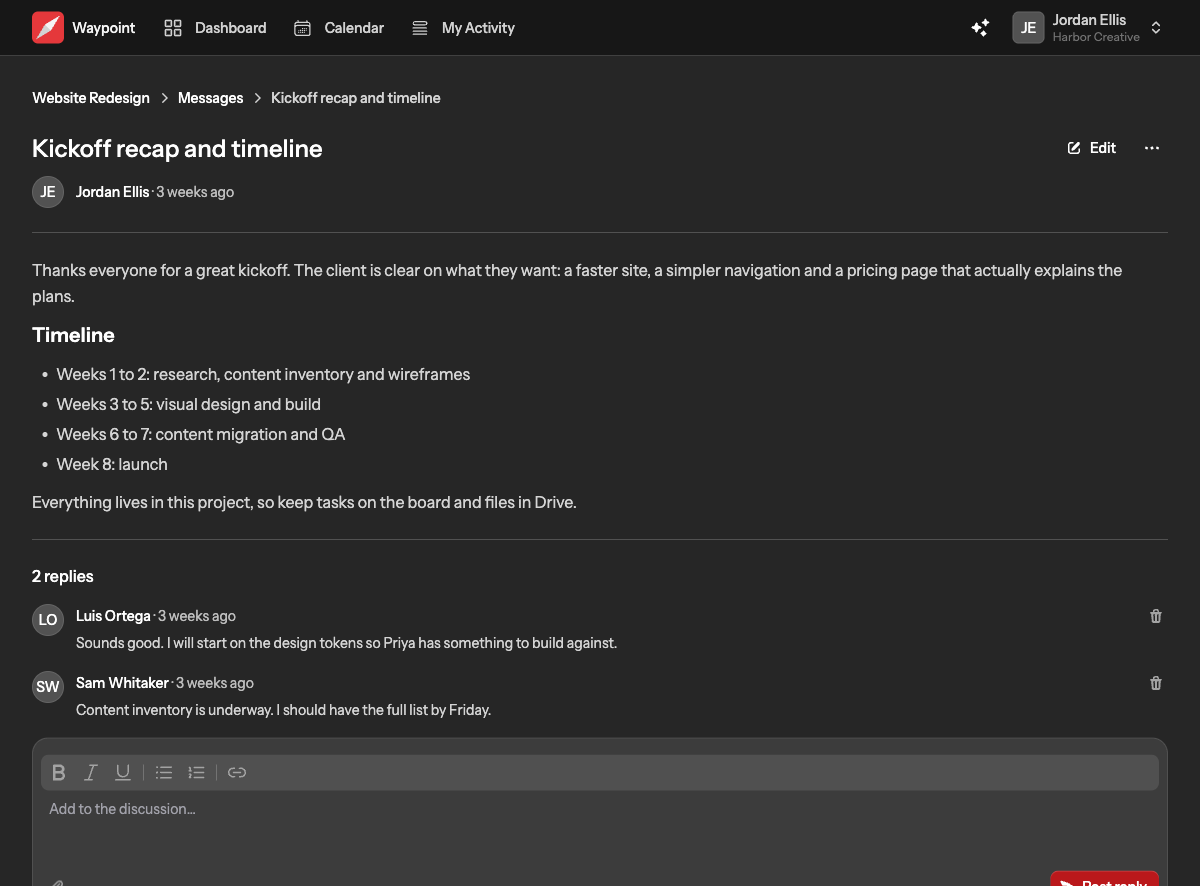
Open a message and write in the reply box at the bottom. You can attach up to 10 files of up to 10 MB each to a reply. When you post, the message's author and everyone who has replied before are notified. Replies open once a message is published; drafts and scheduled posts cannot be replied to.
Editing and deleting
The author of a message can edit or delete it, and team owners and admins can edit or delete any message. The same rule applies to replies: your own, or any reply if you are an owner or admin. Deleting a message deletes its replies and attachments with it.