Calendar
Timed and all-day events, participants, links, files and repeating events.
A project calendar holds the project's kickoffs, reviews, deadlines and recurring meetings. Events can have participants, a link, a description and files, and can repeat on a schedule. The same events also appear on the team-wide calendar; see The team calendar and activity feed.
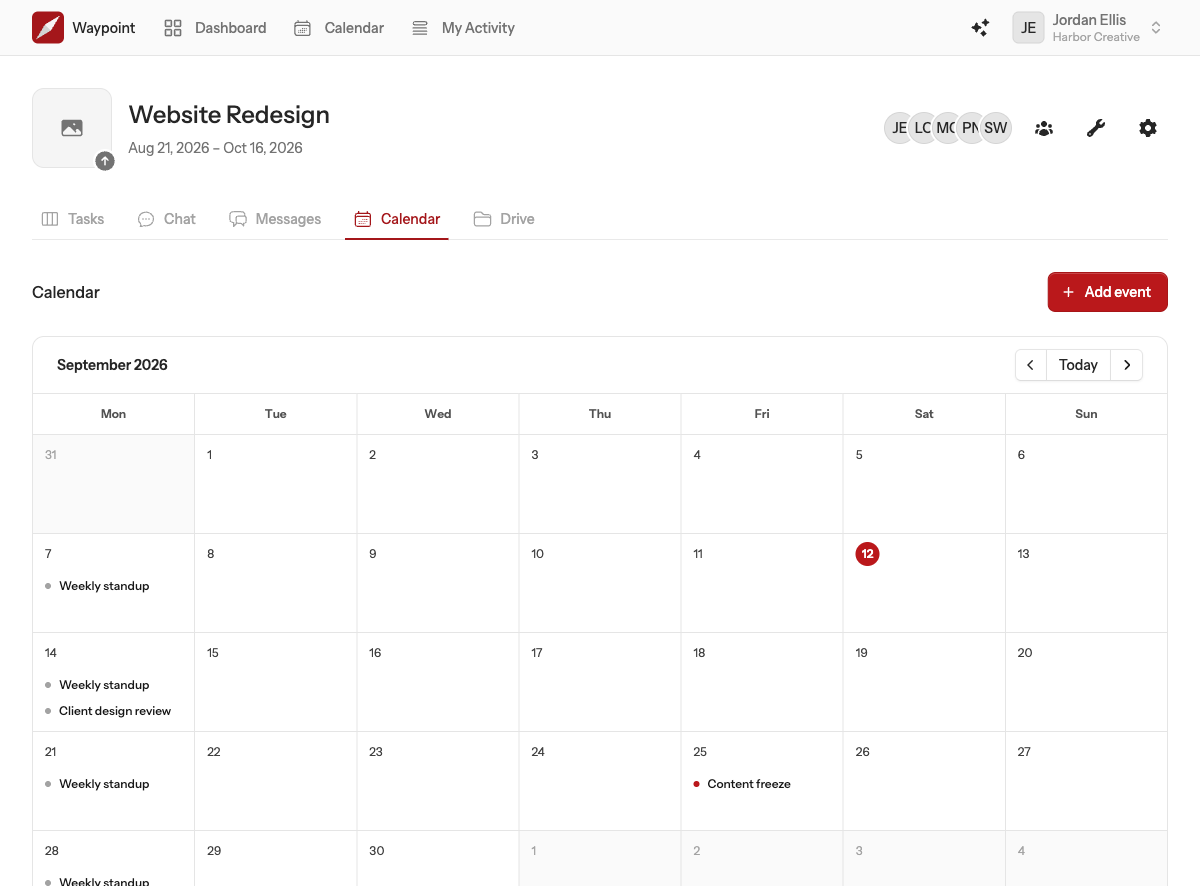
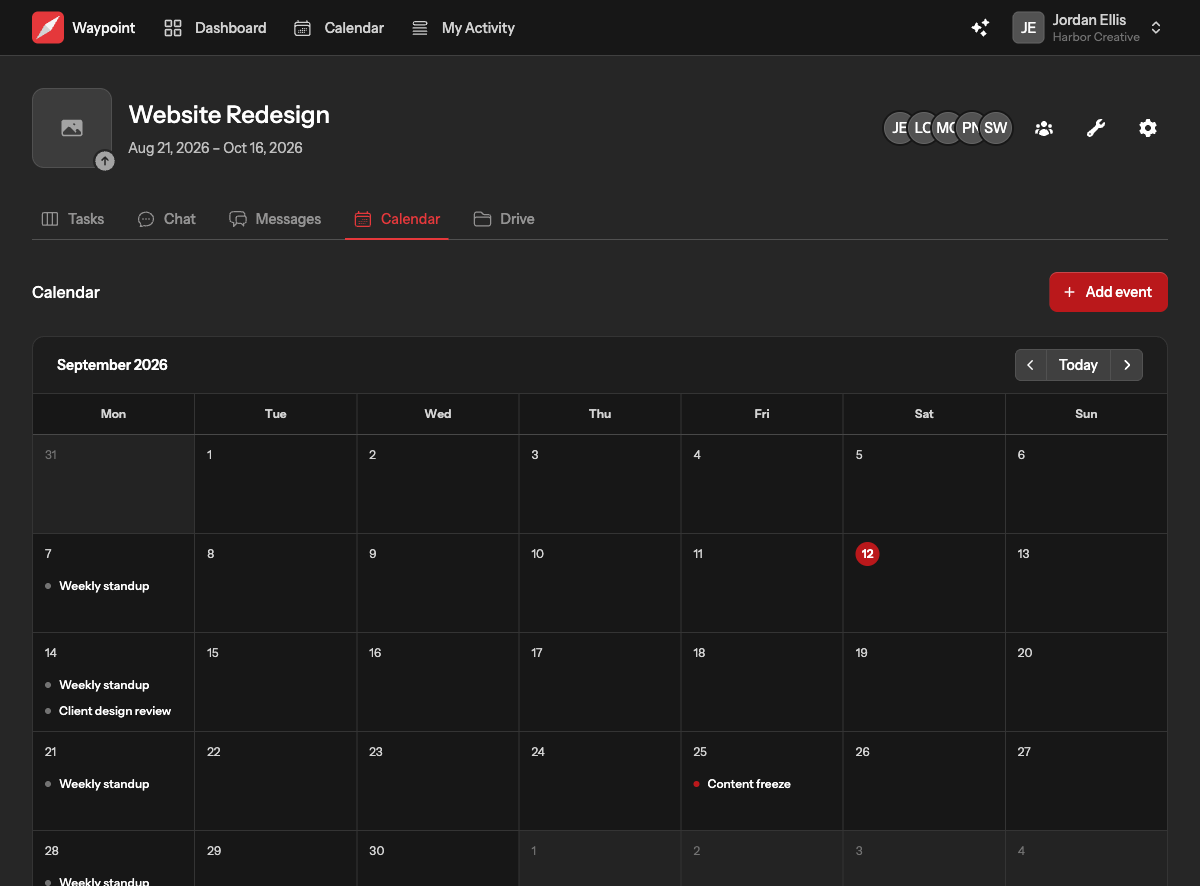
Creating an event
- Open the project's Calendar tab and choose New event, or select a day and add an event to it.
- Give the event a title.
- Set the start and end. Tick All day for events that span whole days; the end date is the last day, inclusive.
- Optionally add participants from the people on the project, a link (a video call, for example), a description and up to 10 files of 10 MB each.
- Choose how it repeats: never, every day, every weekday, every week, every other week, monthly on the same weekday or date, or every year.
- Choose Create.
Participants are notified that they were added, and anyone mentioned in the description is notified too. Times are shown in your own timezone.
Viewing an event
Click an event to open its page. It shows the time, who is coming, the link, the description and any files, and for a repeating event, which occurrence you are looking at.
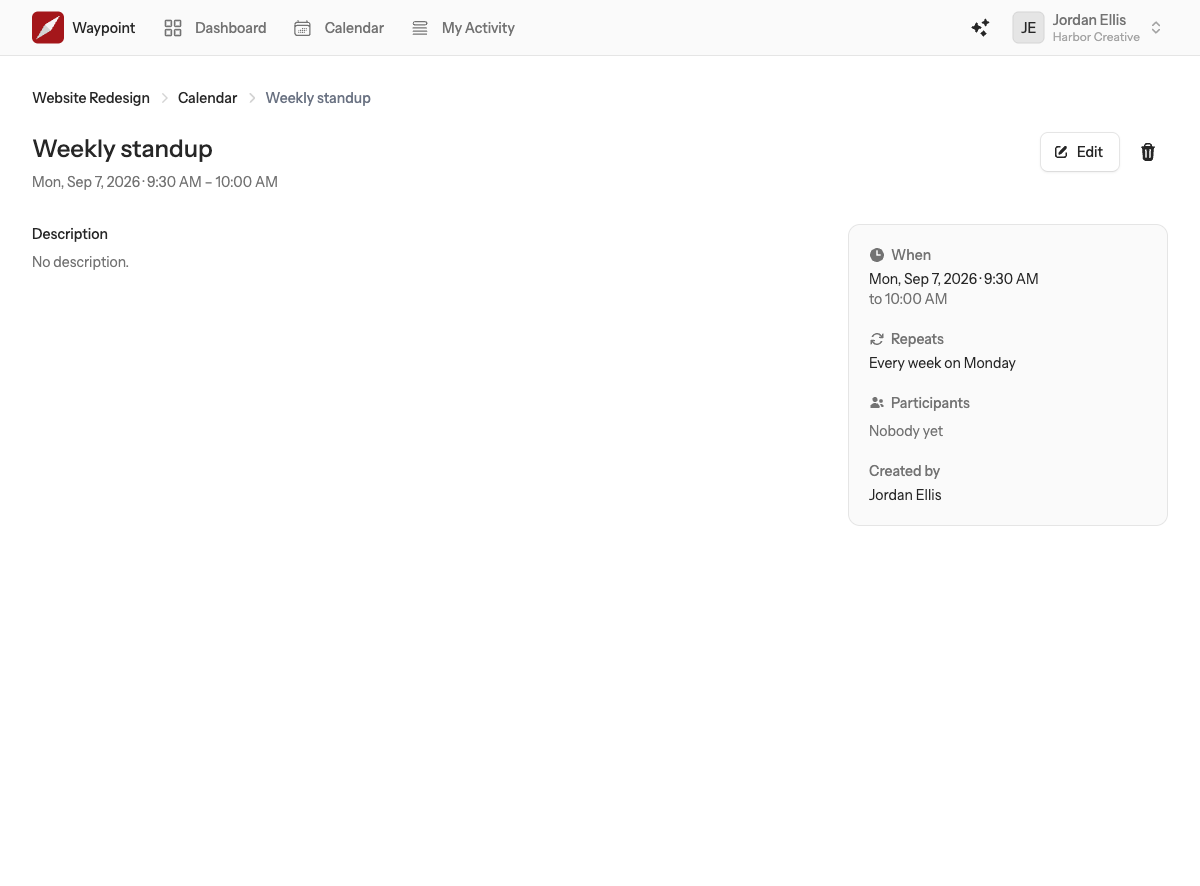
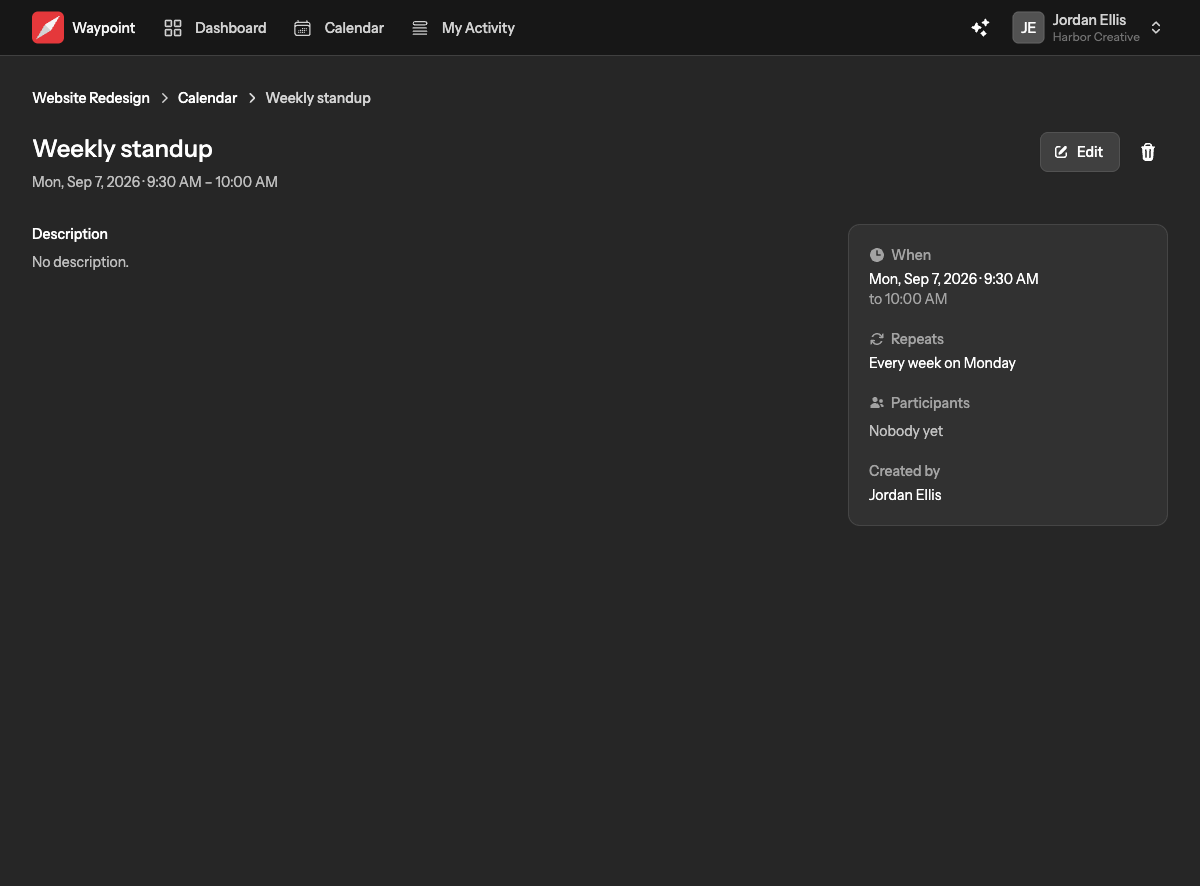
Editing and deleting
Anyone who can see the project can edit or delete its events. Choose Edit on the event page, change what you need and save. Participants are told when an event is rescheduled or cancelled.
For a repeating event Waypoint asks how far the change should reach:
- This event: only this occurrence changes. The rest of the series stays as it is.
- This and following events: this occurrence and every later one change. Earlier occurrences stay as they are.
The same choice appears when deleting: remove one occurrence, or this one and all that follow.