Finding your way around
The dashboard, the header, the team switcher and the pages that span every project.
Waypoint keeps its navigation small on purpose. A handful of places cover everything, and most of your time is spent inside a project.
The dashboard
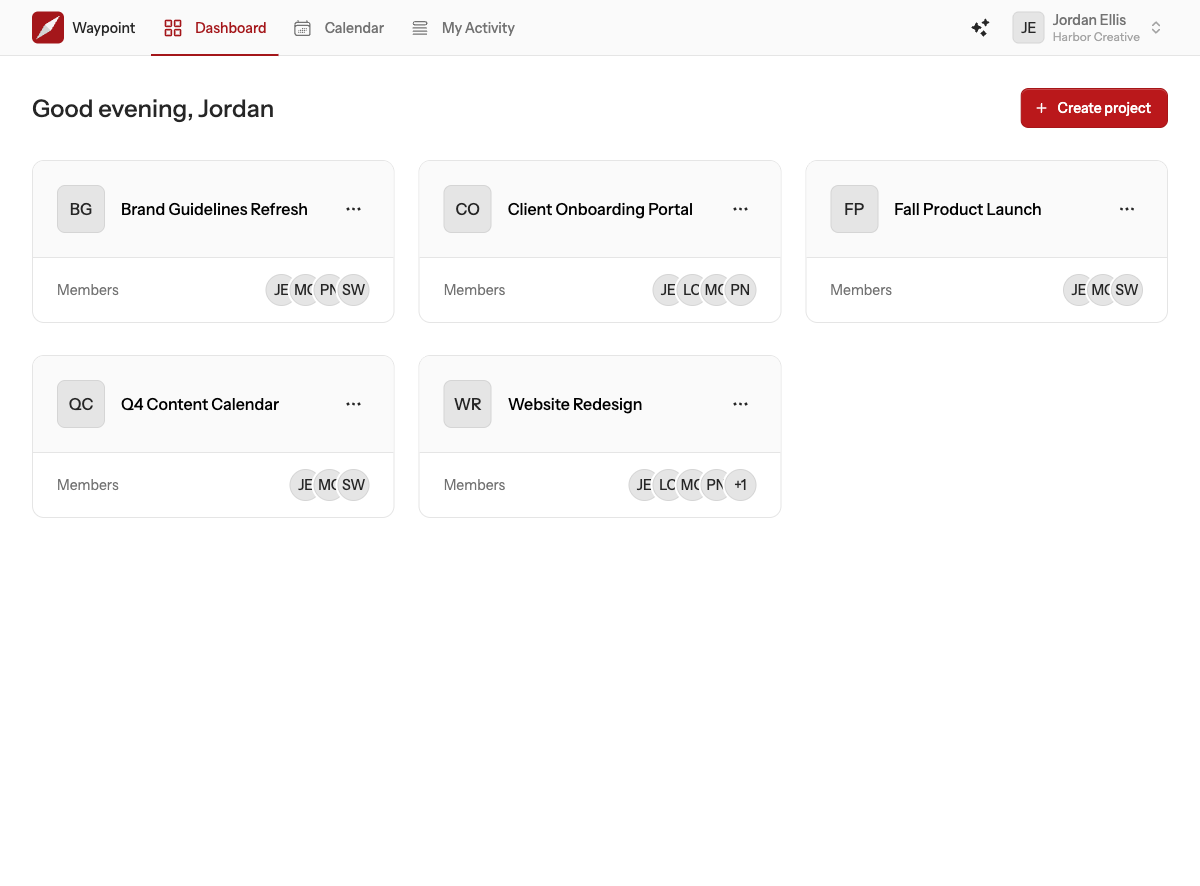
The dashboard lists the projects you can see on your current team as cards, with each project's members and status. Use the menu on a card to open it, edit its settings or manage its members, or click the title to go straight in. Create project sits in the top right.
The header
The header is the same on every page:
- Dashboard, Activity, Calendar and Forms on the left. Activity shows what has changed across the projects you can see; Calendar shows every project's events on one grid; Forms lists the forms you can fill out or manage.
- The sparkles button opens the guide for connecting an AI assistant.
- Your user menu on the right shows your name and the team you are working in. It opens notifications, settings, the team switcher and sign out. A red badge on your avatar means you have unread notifications.
On a phone, the three page links move into a menu behind the button at the top left.
Your current team
Everything you see, from the dashboard to the calendar, belongs to one team at a time: your current team, shown under your name in the header. Open the user menu and choose Teams to switch. The address bar changes too; every team has its own web address, so links you share always open in the right team.
Settings
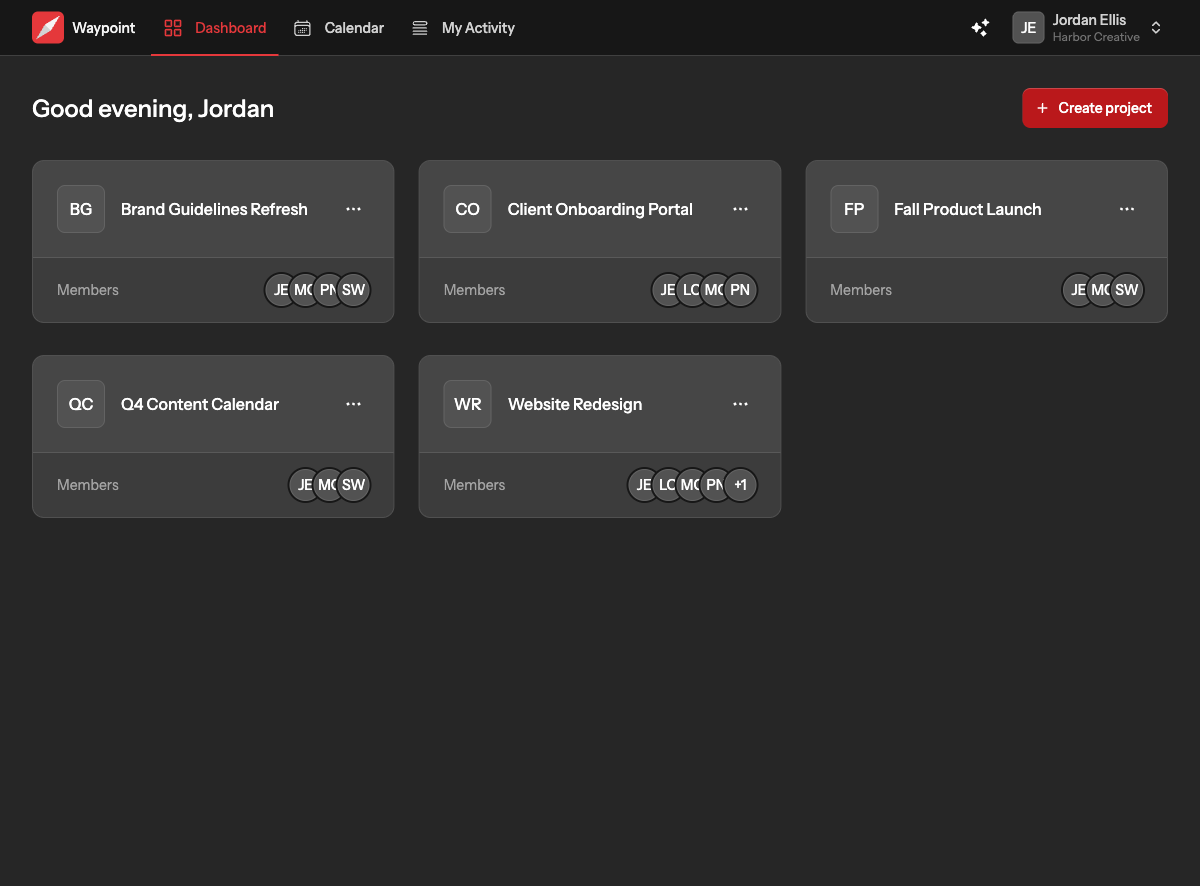
Settings has four sections: Profile for your name and email, Security for your password, two-factor authentication and passkeys, Teams for the teams you belong to, and Appearance for light or dark mode. See Your account.
Notifications
Waypoint tells you when someone mentions you, assigns you a card, posts to a message board you can see, replies to something you are part of, or adds you to an event. The bell in your user menu opens the list. See Notifications.