Connecting an AI assistant
Where to find the setup guide and what happens when a client connects.
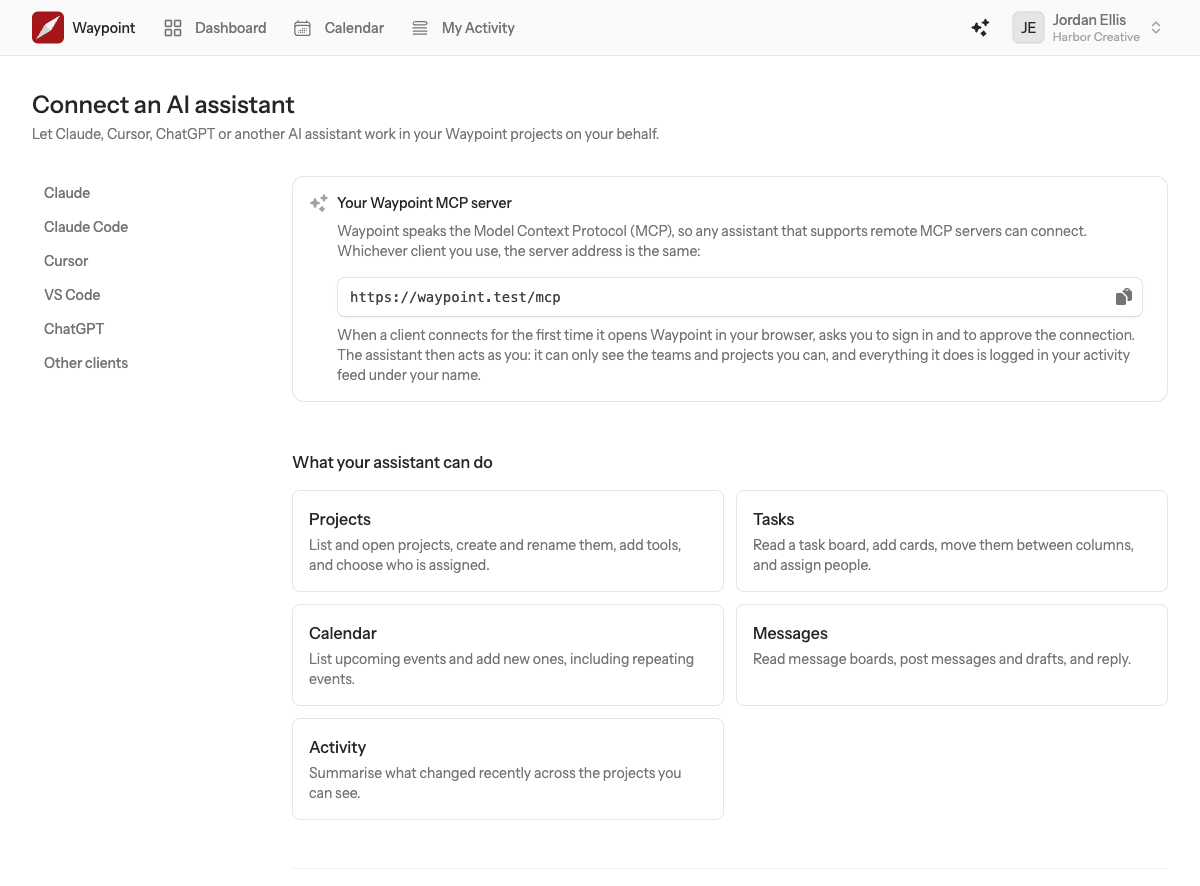
Waypoint works with AI assistants through the Model Context Protocol (MCP), an open standard that lets an assistant use your tools. Once connected, Claude, Cursor, ChatGPT, VS Code or any other MCP client can read your projects and work in them as you.
Where the setup guide is
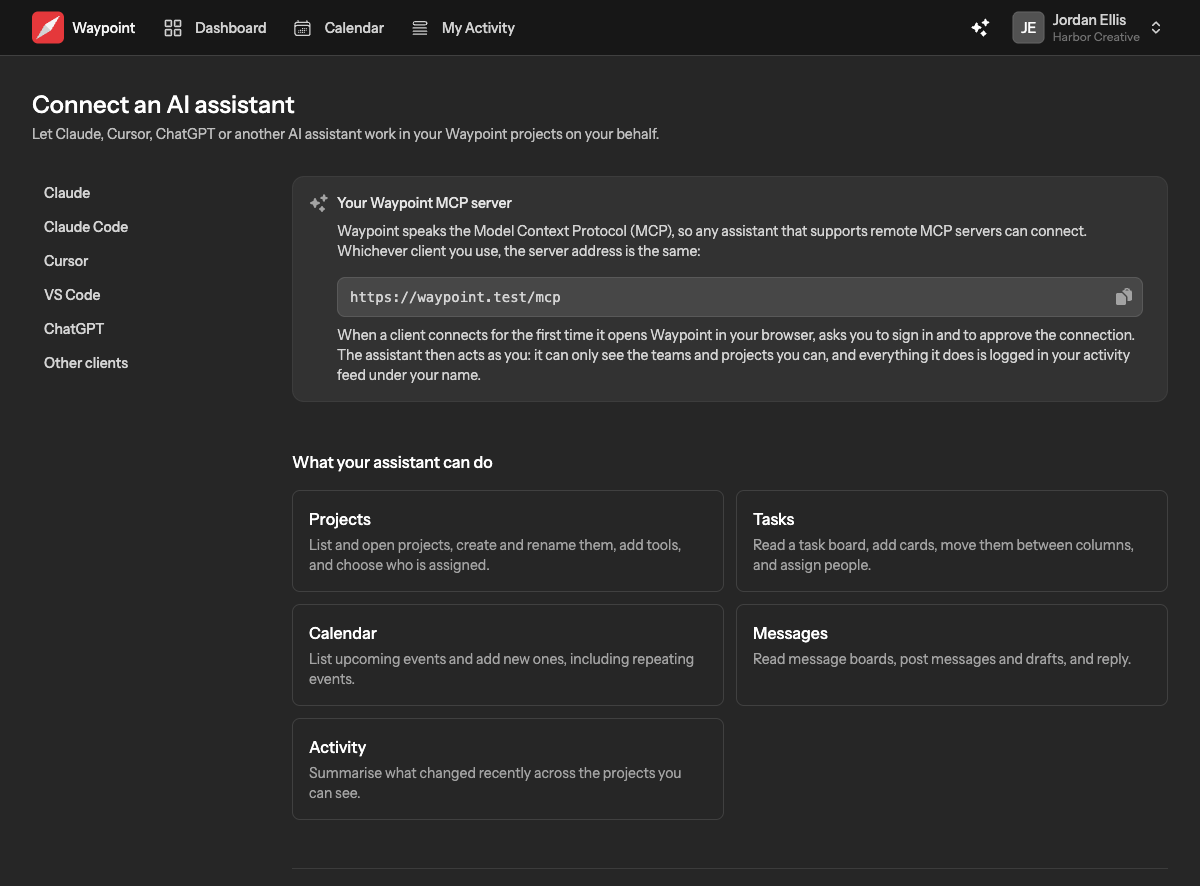
Choose the sparkles button in the app header, beside your user menu. The page shows your team's server address and step-by-step instructions for each client, with the exact commands and settings to copy.
What happens when you connect
- You add Waypoint to the client using the address from the guide.
- The client opens Waypoint in your browser. Sign in if you are not already.
- Waypoint asks you to authorize the client, naming it and what it will be able to do. Choose Authorize.
- You are sent back to the client, which is now connected.
There are no keys or secrets to copy. The client registers itself and signs in as you, and the connection is tied to your account, not to a team: it can reach every team and project you can.
Clients we have written steps for
- Claude on the web and desktop, as a custom connector.
- Claude Code, with one terminal command.
- Cursor, through its MCP settings file.
- VS Code, for GitHub Copilot's agent mode.
- ChatGPT, as a connector in developer mode.
Anything else that supports remote MCP servers over streamable HTTP with OAuth will work too; the guide lists the details such a client needs.