Switching, creating and leaving teams
Move between the teams you belong to, start a new one, or leave one.
You can belong to as many teams as you like: your personal team, your company's team, a client's team you were invited to. Waypoint shows one at a time.
Switching teams
Open your user menu in the top right and choose Teams. The list shows every team you belong to with a tick beside the current one; pick another to switch. The dashboard, calendar, activity feed and notifications all change to that team.
Each team has its own web address, so a link to a project always opens in the team it belongs to, whichever team you were last looking at.
Creating a team
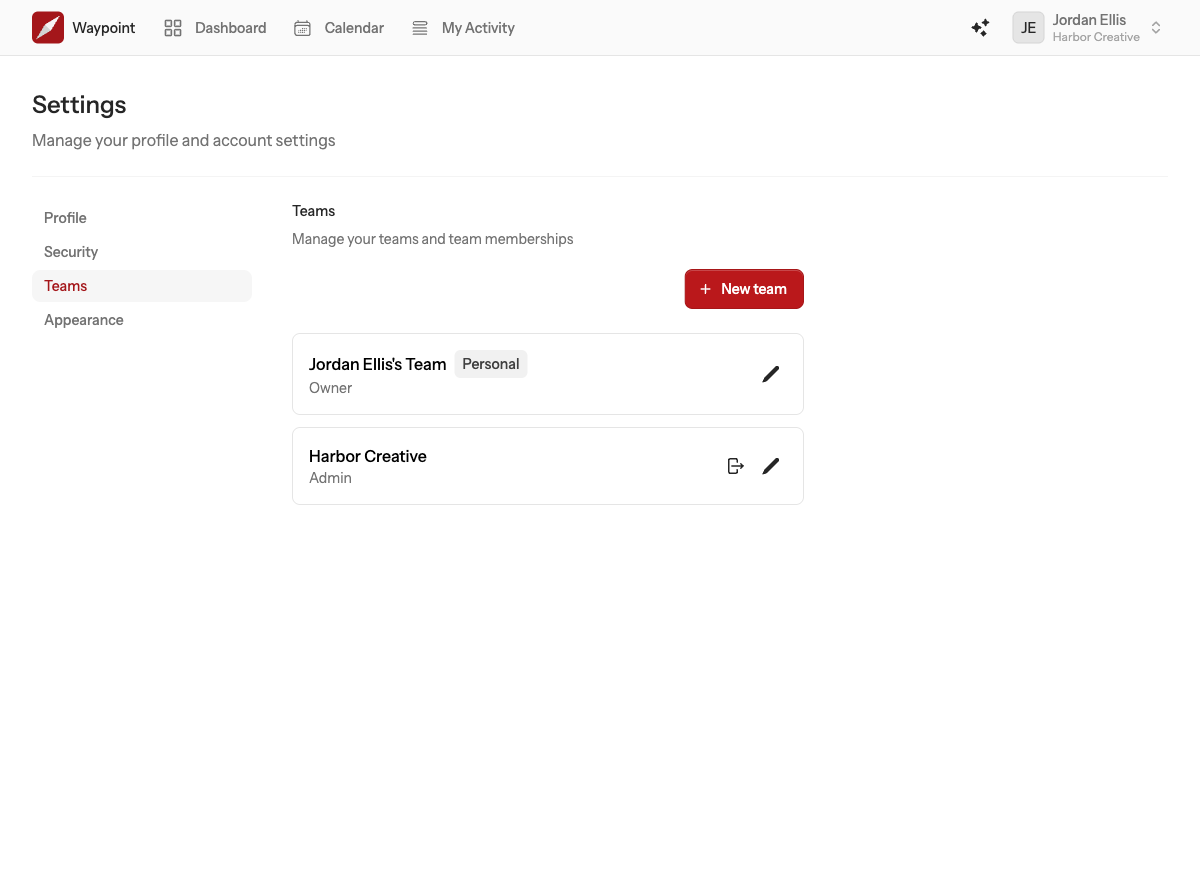
Choose New team from the same menu, or from Settings, then Teams. Give it a name and it is created with you as its owner, on the Free plan. Invite people from its settings page and move it to a paid plan from its billing page whenever you need more room.
Leaving a team
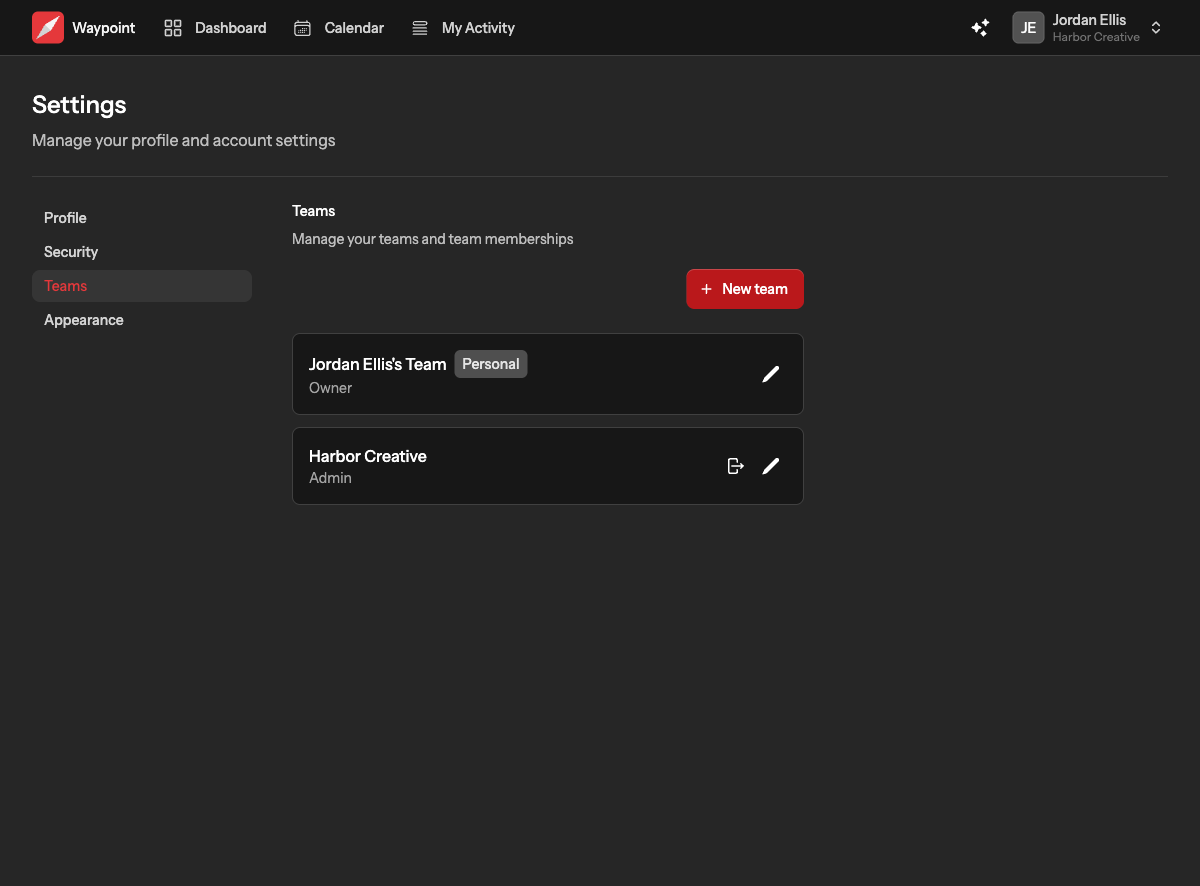
On Settings, then Teams, choose the leave button beside a team and confirm. You lose access to its projects immediately; what you contributed stays. You cannot leave a team you own, or your personal team.
Deleting a team
Only the owner can delete a team, from the bottom of the team's settings page, by typing the team's name to confirm. Deleting a team removes all of its projects and everything inside them, cancels its invitations, and moves every member back to their personal team. Personal teams cannot be deleted. If the team is on a paid plan, cancel the plan from its billing page first; deleting the team does not stop the subscription.