Password, two-factor authentication and passkeys
Keep your account safe with a strong password, an authenticator app or a passkey.
The Security page under Settings covers everything about signing in: your password, an authenticator app as a second step, and passkeys for signing in without a password at all. Waypoint asks you to confirm your password before it opens this page.
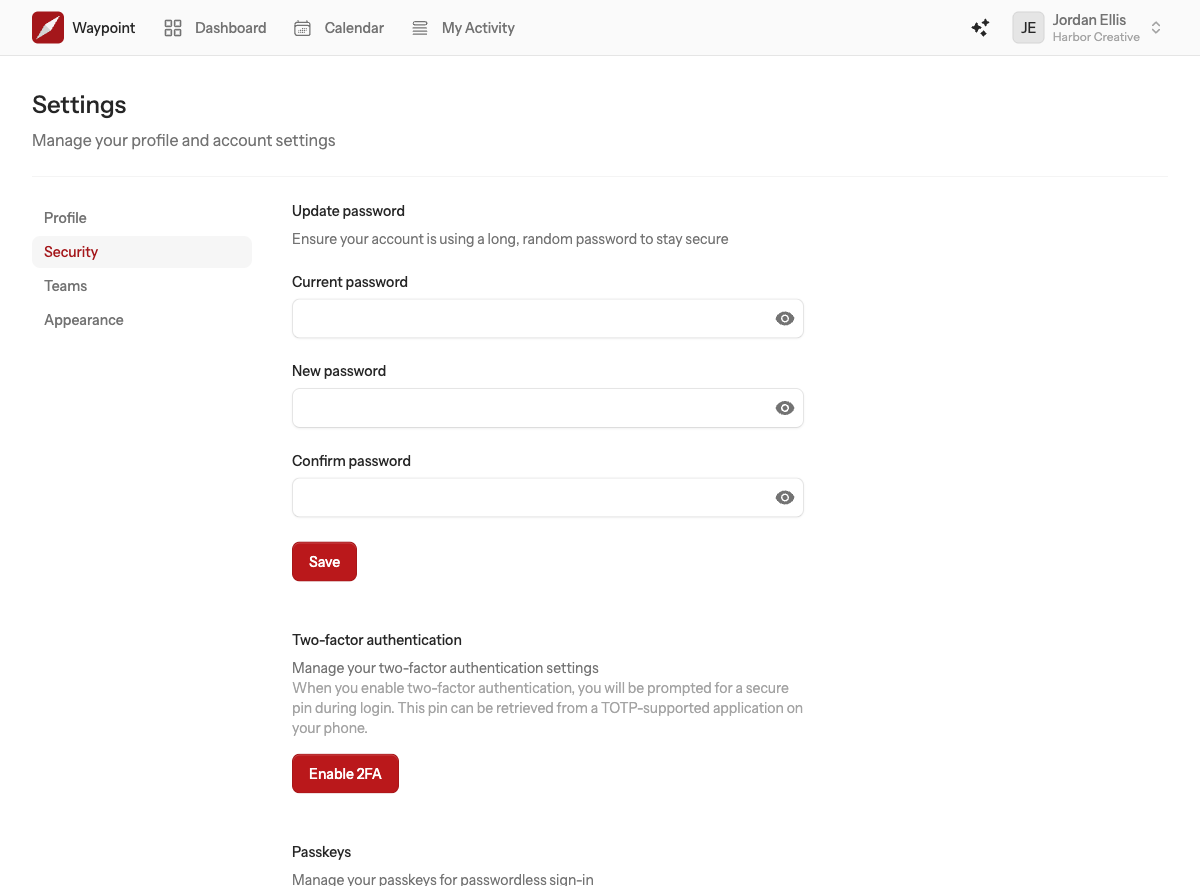
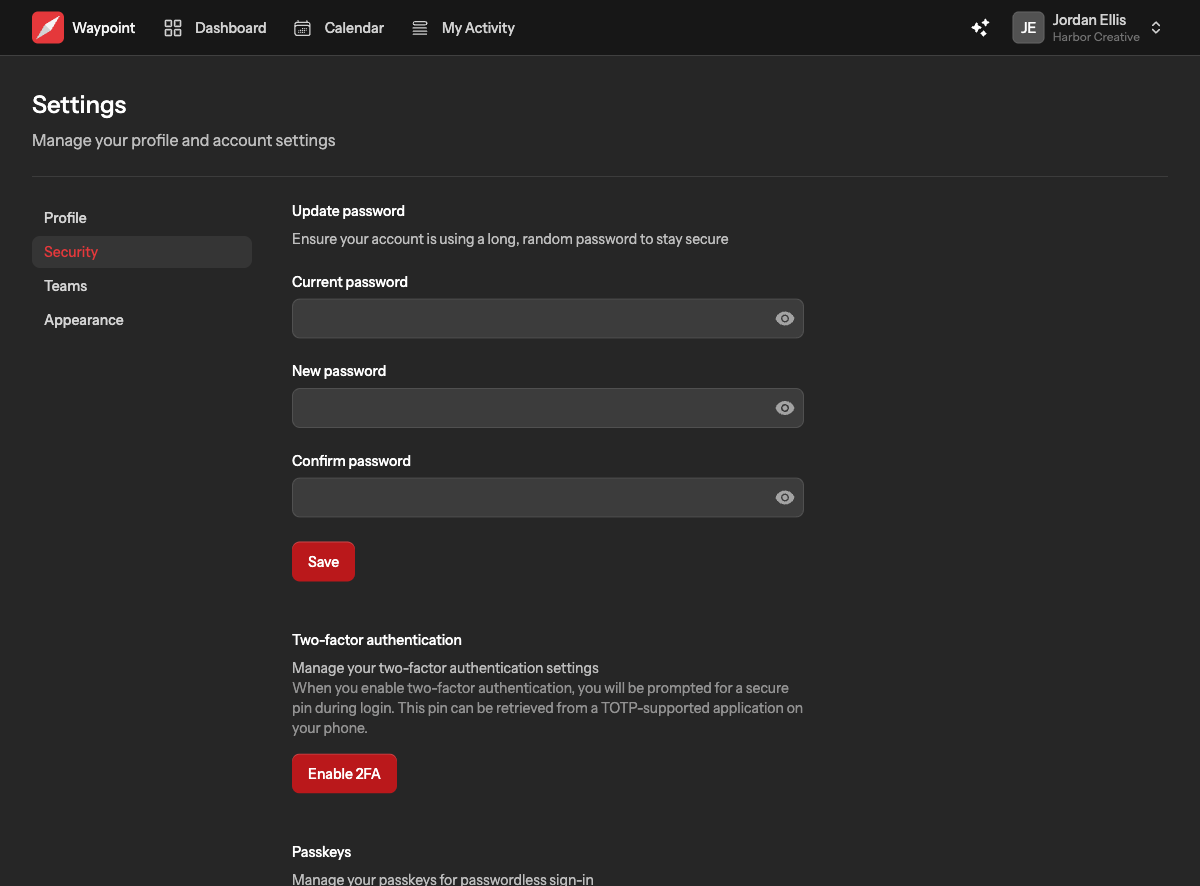
Changing your password
Enter your current password, then the new one twice, and choose Save. Pick something long that you do not use anywhere else. A password manager makes this painless.
If you have forgotten your password, sign out and choose Forgot your password? on the sign in page. We email you a link to set a new one.
Two-factor authentication
With two-factor authentication on, signing in takes your password plus a six-digit code from an authenticator app on your phone, so a stolen password alone is not enough to get in.
- Under Two-factor authentication, choose Enable.
- Scan the QR code with an authenticator app such as Google Authenticator, 1Password or Authy. If you cannot scan, copy the setup key into the app instead.
- Enter the six-digit code the app shows to confirm.
- Save the recovery codes somewhere safe, such as your password manager. Each one signs you in once if you lose your phone.
From then on, after your password, Waypoint asks for a code. You can view or regenerate your recovery codes, or turn two-factor off, from the same section.
Passkeys
A passkey lets you sign in with your device's own unlock, such as Face ID, Touch ID, Windows Hello or a hardware security key, instead of a password. Passkeys cannot be phished and there is nothing to remember.
- Under Passkeys, choose Add passkey.
- Follow your browser's prompt. It stores the passkey on your device, or in your password manager or iCloud Keychain if you use one.
- Give the passkey a name you will recognise, such as the device it lives on.
Next time, choose Sign in with a passkey on the sign in page. You can register several passkeys, one per device, and remove any of them here. Your password keeps working alongside them.